![Euronext-Corporate-Solutions_Logo-RGB_Colour-3.png]](https://help.complylog.com/hs-fs/hubfs/Euronext-Corporate-Solutions_Logo-RGB_Colour-3.png?height=40&name=Euronext-Corporate-Solutions_Logo-RGB_Colour-3.png)
Invitation to Employee Trade Center
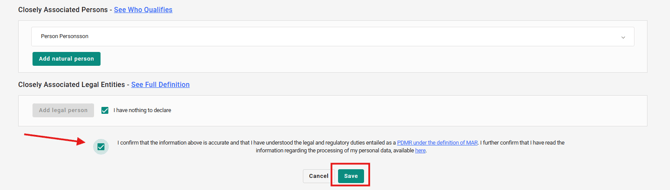
When an employee is added to a list type connected to the Employee Trade Center, an email will be sent with a link to the personal form and information about required obligations.
- Click the link to access the form.
- Complete all required fields in the form.
- After saving the form, the system will redirect to the Dashboard of Employee Trade Center.
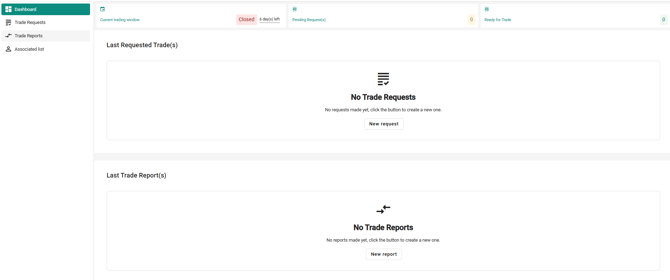
The Employee Trade Center can be accessed at any time by using the link to the individual form.
Time zone and language
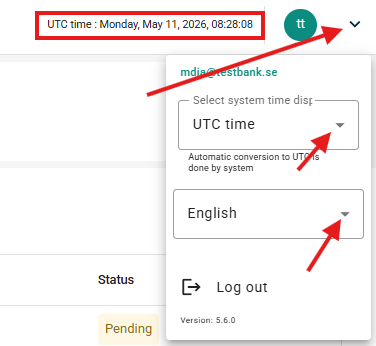
The system is displayed by default in UTC time and in the language of the user’s browser.
To change these settings, select the user name in the top right corner to open the dropdown menu. From there, the local time zone can be selected instead of UTC to improve usability. All timestamps will continue to be automatically converted to UTC to ensure regulatory compliance.
The same menu also allows the system language to be changed according to user preference.
Dashboard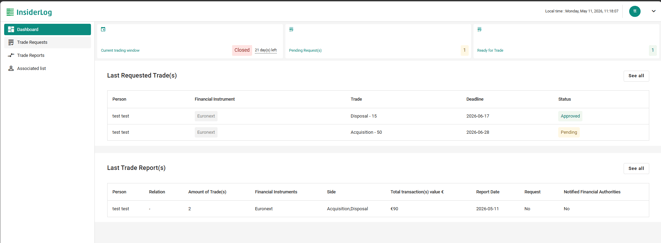
The Dashboard provides an overview of employee's most recent trade requests and submitted trades, along with the current status of those requests.
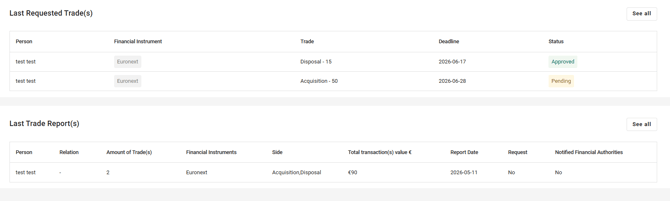
The top banner of the dashboard will display:
-
Whether the company is currently in an active trading window:
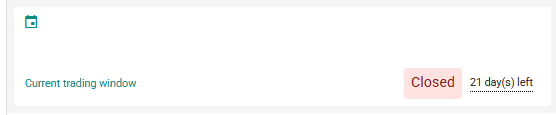
-
Status "Closed": The company has set its status to a closed period in the system, trade is generally not allowed during this period. This will also display a countdown indicating the number of days remaining in the closed period.

-
Status “Open”: This means the company has entered in the system that they are currently in an open trading period.This will also display a countdown indicating the number of days remaining in the open period.

-
Status “None”: the company has not entered if they are in an open or closed period.

-
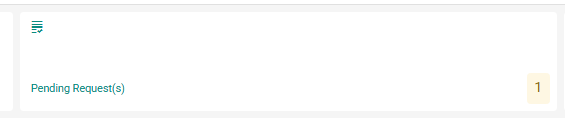
- It displays how many of the empolyee's requests that are currently pending.
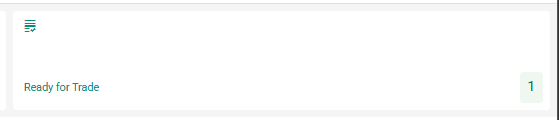
- And how many of the employee's requests that have been approved and are ready for trade.
Trade Requests
This section allows employees to request a new trade and view pending requests.

To submit a new trade request:
-
Click “New request”.
-
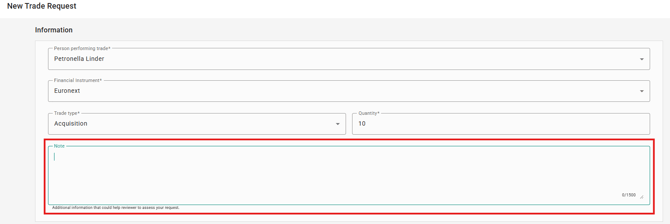
Select who will perform the trade through the drop down menu.

-
Choose the financial instrument to be traded.

-
Select the trade type and quantity.

-
In the Note section, add any information that could help the reviewer assess the request.
-
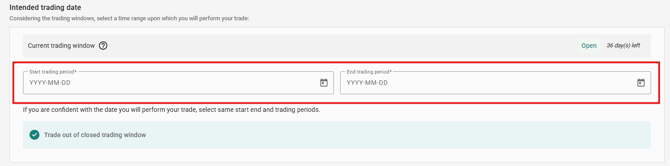
The Current trading window section shows whether the trading period is open or closed and indicates how many days remain for the trading period.


-
Enter the Start trading period and End trading period dates for the trade.
-
A banner will appear:
-
If the selected dates fall within a closed trading window, a warning banner will indicate a high risk of rejection.

-
If the dates fall within an open trading window, a green banner will display “Trade out of closed trading window”.

-
-
Click Submit to complete the request.
After submission, the request appears in the Trade Requests overview, where the status of each request can be viewed.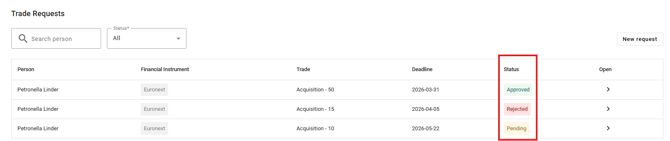
Request Statuses:
- Pending: The trade request is under review by the case officer.
- Approved: The trade request has been approved.
- Rejected: The trade request has been rejected.
Trade Reports
This section allows employees to report their trades and view previously reported trades.

To submit a new trade report:
-
Click “New report”.
- Select who will perform the transaction through the dropdown menu.

- Select if you have an approved request for the transaction(s).
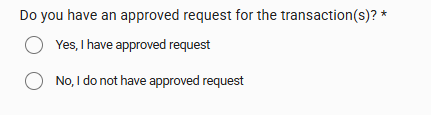
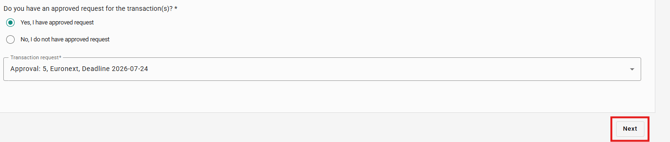
- If yes, select the relevant Trade request from the dropdown menu.

- If yes, select the relevant Trade request from the dropdown menu.
- Click on "Next".
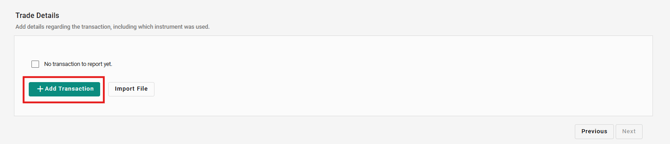
- To report your transaction(s), click on "+Add transaction".
- Select which financial instrument from the dropdown menu.

- Select transaction type, quantity and trading venue.

- Select trade date and time.

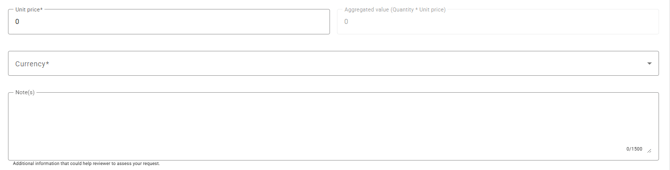
- Add unit price an currency. Add any information that you feel could clarify your transaction(s) in the Note(s) section.
- To add more transactions in the same trade report, click on "+Add transaction" or "Import file"
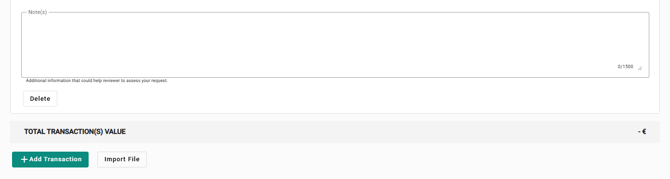
- Total Transaction(s) Value will be displayed at the bottom of the page.

- When all necessary information has been entered, click on "Next"
- Review all details in the Overview. Confirm that the information in the report is accurate and that you understand your legal and regulatory obligations by ticking the box.
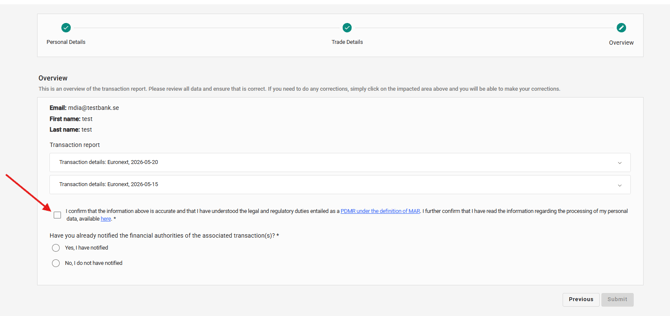
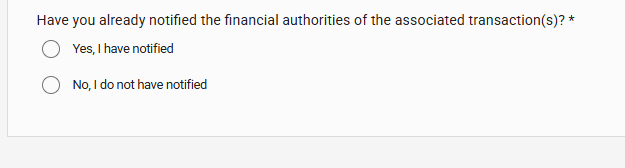
- Select if you have already notified the financial authorities of the transaction.
- Click Submit to send in your trade report.
- Once the trade report has been submitted, it will appear in the overview of all trade reports. A banner will be displayed with the message “Transaction report sent”.

Associated list
This section allows the employee to review and update their personal information and closely associated list.
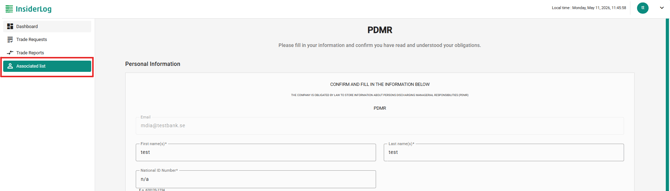
Once changes have been made, confirmation is required that the information is accurate and that the relevant legal and regulatory obligations have been understood by ticking the checkbox. Select “Save” at the bottom of the page to apply the updates.