![Euronext-Corporate-Solutions_Logo-RGB_Colour-3.png]](https://help.complylog.com/hs-fs/hubfs/Euronext-Corporate-Solutions_Logo-RGB_Colour-3.png?height=40&name=Euronext-Corporate-Solutions_Logo-RGB_Colour-3.png)
This guide applies to insider lists under EU regulations. For instructions on setting up an insider list under UK or other non-EU regulations, please click here.
Create a new insider list
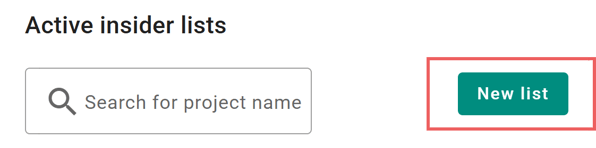
To create a new insider list, navigate to Active insider lists and click the New list button.
Basic information

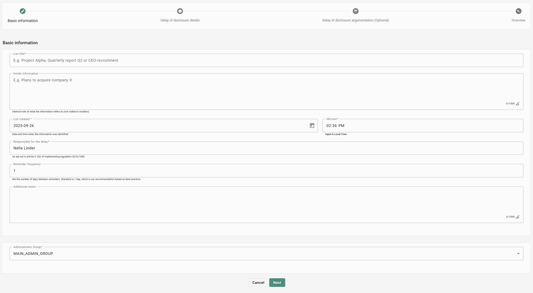
- Enter a list title. Note that this title will appear in the email sent to all insiders, so avoid including any sensitive information.
- Under Inside Information, provide a short description of what the information concerns, for example “Purchase of Competitor X”. This description is only visible to administrators and forms part of the insider list documentation. It will not be visible to insiders.
- The List Created field is automatically populated with the current date and time. Make sure the entered date and time correctly reflect when the inside information was identified.
- Set the reminder frequency for insider notifications. By default, reminders are sent daily until the insider has completed their form, but the frequency can be customised.
- Add additional notes if needed.
- Assign an admin group that will access and manage the list.
- After entering all the information, click Next at the bottom of the page to proceed to the next step.
Delay of disclosure details

Enter the delay of disclosure details to specify whether the information concerns a final event, delayed disclosure, or immediate disclosure.
- Select whether the information concerns a final event
- If YES, continue to fill out the delay of disclosure details;
- If NO, navigate to the next page
- Select whether the public disclosure is being delayed in accordance with article 17.4 MAR
- If YES, continue to fill out the delay of disclosure details;
- If NO, navigate to the next page
-
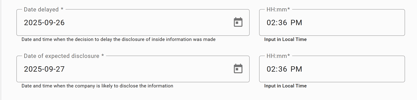
Fill in the Date delayed field with the date and time when the decision to delay the disclosure of inside information was made, and the Date of expected disclosure field with the date and time when the company is likely to disclose the information
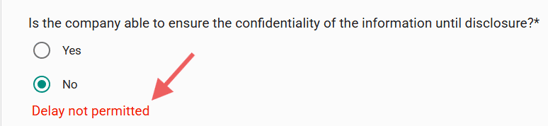
- Answer all the required questions. If your answer is not in accordance with the requirements of a delayed public disclosure, the system will tell you a delay is not permitted
- Once the relevant sections are complete, click Next to proceed to the next step.
Delay of disclosure argumentation (Optional)

This section allows you to input and store your explanation of how the criteria for delaying disclosure, as required by Article 17.4 of MAR, are fulfilled. You may enter this information now or complete it later in the list settings. You may also upload supporting files in the settings page.
Overview

This page provides an overview of your list. If any information is missing, click Previous at the bottom of the page to go back and make changes. If everything looks correct, click Create list to complete the process.
Add insiders
When the insider list is created, you can start adding the insiders.
- Press add person.
- Enter the email address(es) of the person(s) you want to add. You can also add a contact group name. Contact groups can be created under the contacts tab.
- Enter the date and time when the insider(s) received the information.
- Choose which email to send to the added person(s):
- Send email with notice of obligations and link to form (to collect confirmation and personal details).
- Include a request that the insider must keep a sub-list.
- Send custom email instead of using the standard template. This will allow you to edit the email before sending it.
- Uncheck all boxes to avoid triggering an email to the insider.
Proceed to Add member(s) to list.
Insider status
Under Status in the list view, you can see if the status is complete or incomplete, which shows whether the person has or hasn’t filled in the form and confirmed that they’ve received and understood the information in the email. 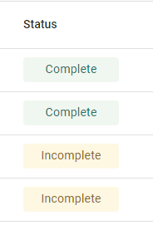
Edit insiders
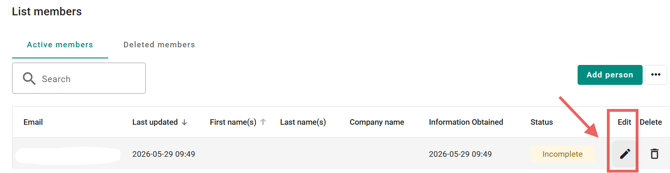
If you click on edit next to a person’s email address in the list, you’ll access the person's form with their personal information. Here, you may make changes, if needed.
As an administrator, you are able to fill in the form for the person by entering all fields. Before saving, you may choose if you want to save the person as complete or incomplete.
Remember that if you fill this out before the person has responded you need to separately notify the person of its obligation and collect a confirmation that it has received and understood.
At the bottom of the form, you can find the email history connected to this person. You can find which email has been sent out as well as the date and time stamp.
Send reminders
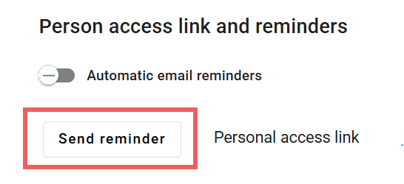
If you want to send a manual reminder or a customised email to all persons on the list, use the send reminders button.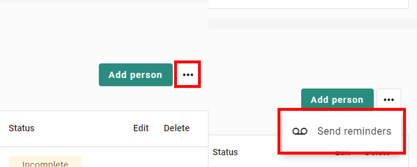
Choose if you want to use the default email template or customise the template to your liking.
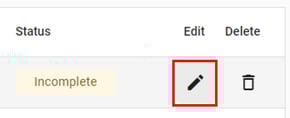
Click send reminder to send the message to just that individual.
Delete insider
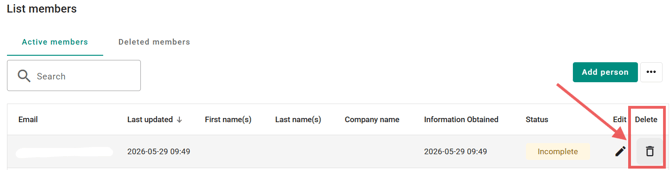
- Click delete next to the person's name in the list.
- A dialog box will ask you to confirm the deletion. Click proceed to delete the person.
List settings
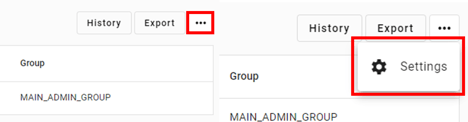
From the settings page, you can change the Basic information of the list, attach files to the list, and manage the delay of disclosure details.
To access the list settings, click the settings button in the top right corner.
Add Delay of Disclosure

If the information may be subject to delayed public disclosure, select “Add Delay of Disclosure” to perform the assessment. If the assessment was already completed during the list creation process, this step will not be relevant or available.
Export list
- To export the list, click the export button.
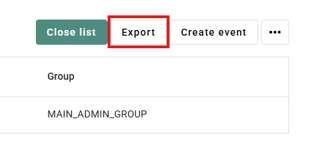
- Using the checkboxes, you can choose the content of your export. You also have the option to download the list as an Excel file. By default, it will be exported in pdf format.
- Use the dropdown menu to choose the language in which you want the file to be.
- Choose the date you want the export to reflect using the calendar function.
- Click proceed to begin the download.
Audit trail
- To access the audit trail, click the history button.
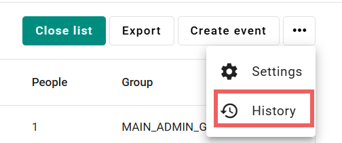
Here, you can find a full audit trail of changes and events made in the list, when they happened, and who actioned them.
Create event
This section is only available for insider lists where there is a delayed public disclosure, and allows you to keep a log of all events that could have had an impact on your decision to delay disclosure or the explanation around that decision.
- To create an event in an existing insider list, click the create event button
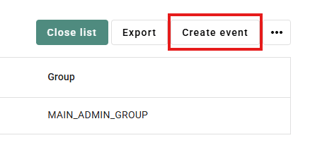
- Click on Add event

- Fill in the event name, along with the date and time when the event took place
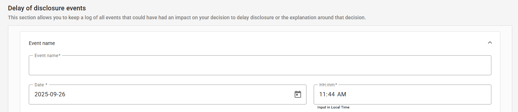
- Enter a description of the event and specify the level of impact it caused.
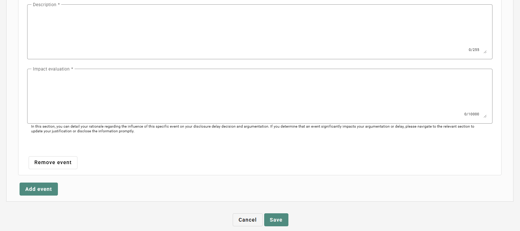
- If several events has occurred, click Add event.
- After entering all the information, click Save at the bottom of the page.