![Euronext-Corporate-Solutions_Logo-RGB_Colour-3.png]](https://help.complylog.com/hs-fs/hubfs/Euronext-Corporate-Solutions_Logo-RGB_Colour-3.png?height=40&name=Euronext-Corporate-Solutions_Logo-RGB_Colour-3.png)
Transaction Module
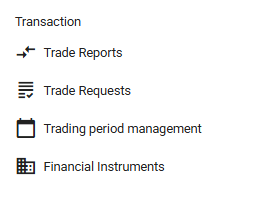
- Trade Reports
To review employees’ reported trades. - Trade Requests
To review, approve, or decline employees’ requested trades. - Trading period management
To schedule and communicate open and closed trading periods to employees. For detailed instructions, see the separate guide Set up Trading Windows. - Financial Instruments
To configure your company’s financial instruments. This must be set up before employees can begin reporting or requesting trades, as only the instruments added here will be available for selection.
Trade Reports
This section allows administrators to review employees' reported trades.
Trade Reports: Active Traders
The Active Traders view provides an overview of all employees who have reported a trade, along with their total traded amount. It also allows administrators to apply and manage trading thresholds. 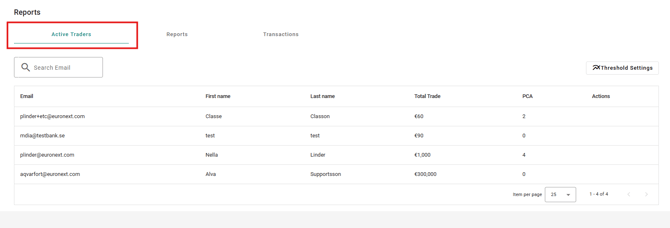
Threshold Settings allows administrators to set and manage the total trade threshold for employees.
Please note that changing the threshold settings impacts both current and future threshold calculations.
To manage the threshold limit:
-
Click on Threshold Settings.
- Enter the total Threshold amount, Start month for the threshold and Duration.
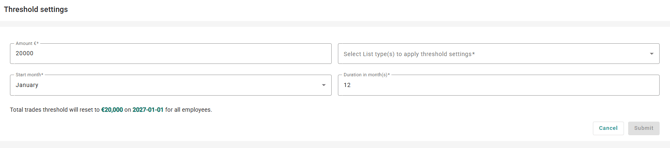
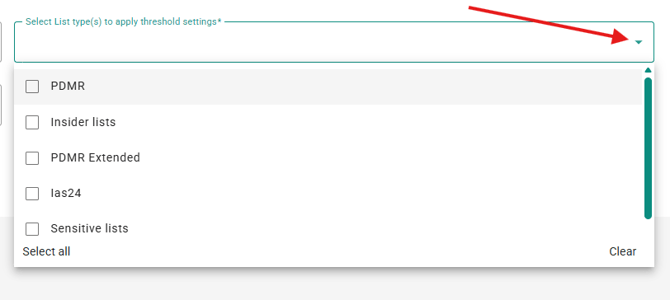
- Select which list types should be subjects to the threshold from the drop down menu.
- Click on Submit.
-
A pop-up window will appear explaining what the change in threshold means and asking you to confirm your choice. To proceed, click “Confirm.”
- After applying a threshold limit, it will appear for each active trader in the Total trade section, along with a calculation of their total traded amount.
A green indicator means the trader’s total is within the threshold, while a red indicator means the threshold has been exceeded.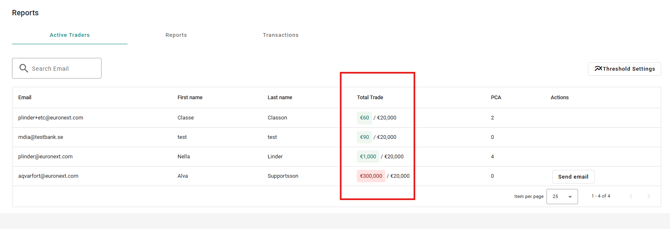
If an employee has exceeded the threshold, the administrator can choose to send them an email notification.
After clicking Send email for the relevant employee, a pop-up window for the Above threshold notification will appear.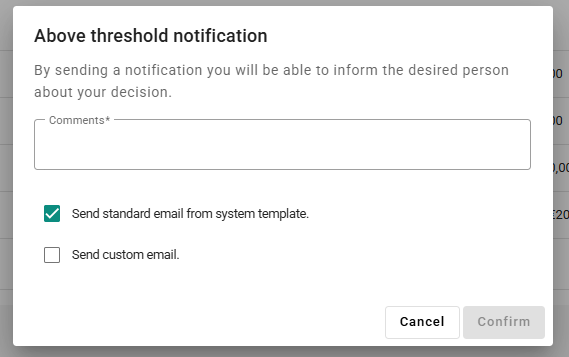
Please note that the comments field is for internal use only and will not be visible to the employee.
Select one of the following email options:
- "Send standard email from system template"
Sends an email based on the default template configured in Email Settings. Click here for more information. - "Send custom email"
Allows the administrator to write and send a personalised message instead of using the default template.
- "Send standard email from system template"
Trade Reports: Reports
The Reports view provides an overview of all trade reports. Please note that one trade report can contain multiple transactions.
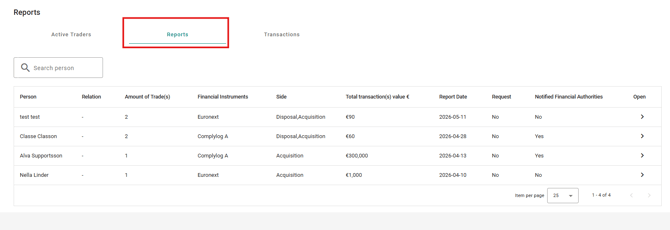
For a more detailed view of a report, click on the arrow in the section open.

The Trade Report Details allows the administrator to see a full view of the trade report, as well as to Download report summary to pdf. 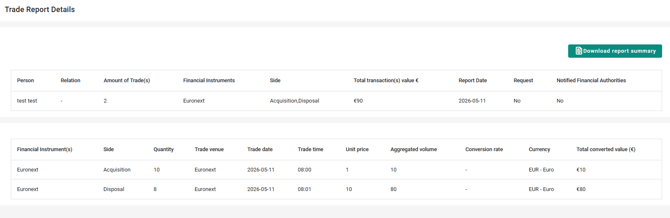
Trade Reports: Transactions
The Transactions view shows all transactions that have been reported. 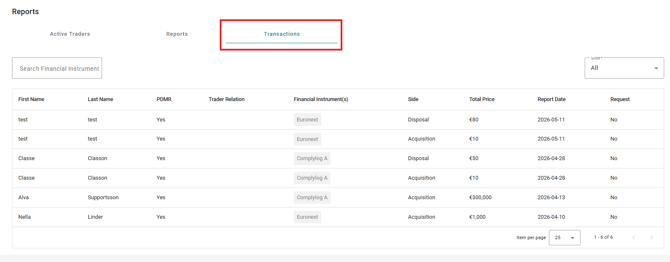
To filter through the transactions, either select transaction type through the drop down menu to the right,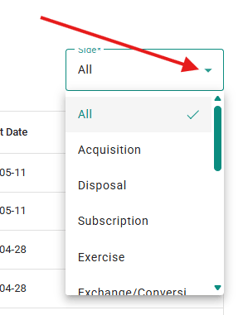
or use the search bar to the left to search for a specific financial instrument. 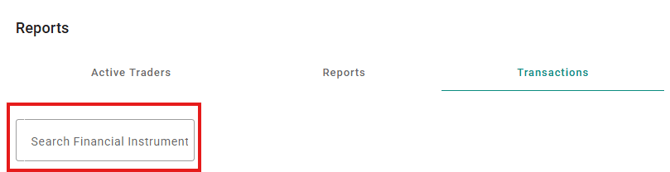
Trade Requests
This section allows administrators to review, approve, or decline employees’ requested trades.
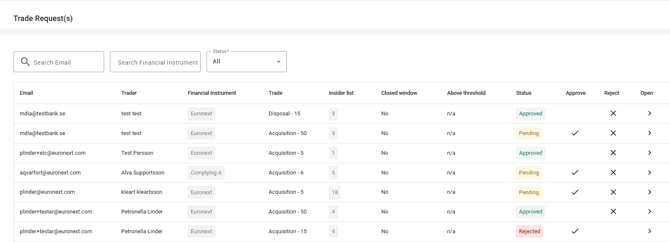
To filter requests, use the search and filter options available:
-
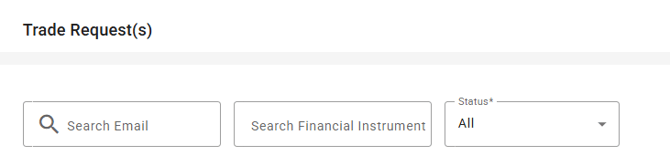
Use the left search bar to find a list member by email address.
-
Use the right search bar to search for a specific financial instrument.
- Use the dropdown menu to filter requests by status.
Request Statuses

- Approved: The trade request has been approved by an administrator.
- Rejected: The trade request has been rejected by an administrator.
- Pending: The trade request is waiting to be handled by an administrator.
To review or manage a submitted Trade Request, click on the icon for Open on the relevant request. 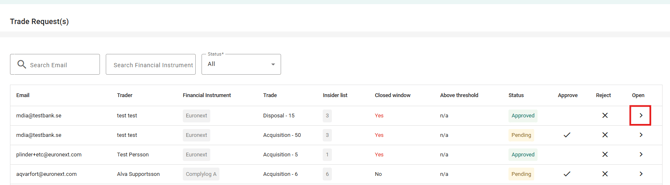
In the Transaction request the following information is displayed:
-
The list type the employee belongs to.
Please note that this section only displays the list types the employee belongs to that are connected to the Employee Trade Center.

- All transaction information.
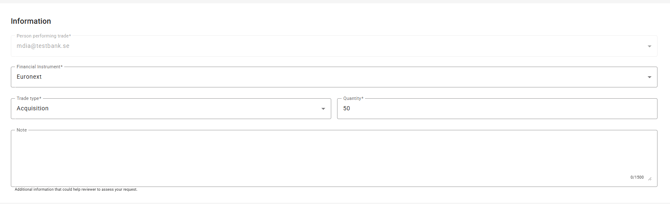
- Intended trading dates and the current trading period status (open or closed), and the type of trading period in which the trade will occur.
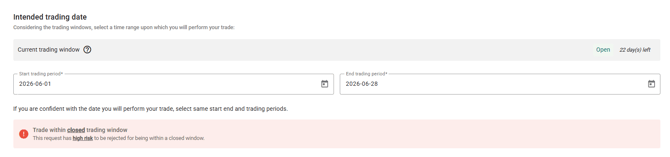
Please note that all trading window information is based on the periods configured in Trading Period Management. For more details on how to manage trading windows, see the relevant guide.
- Threshold check (if enabled) to ensure the transasaction is within the threshold limit.

The decision to Approve or Reject a Trade Requests can be made in two ways in the system:
-
From the trade request overview:
Click the approve or reject icon next to the relevant trade.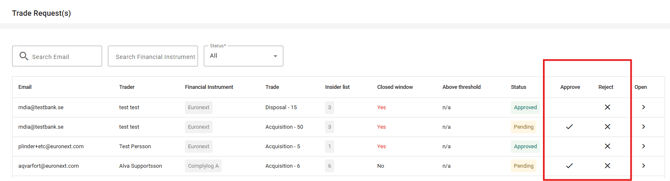
- From the transaction request details:
Click Open on the relevant trade to access its details. From there, use the Approve or Reject options located in the top-left corner of the screen.
Email Notifications for Trade Requests
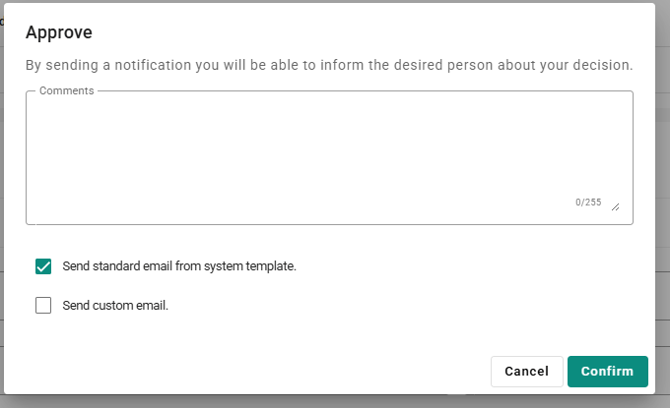
When approving or rejecting a trade request, you have the option to send an email notification to the requester.
-
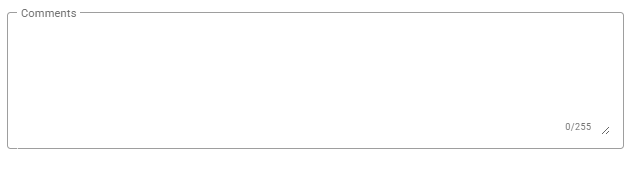
The comment field is for internal use only and will not be visible to the employee whose request is approved or rejected.
-
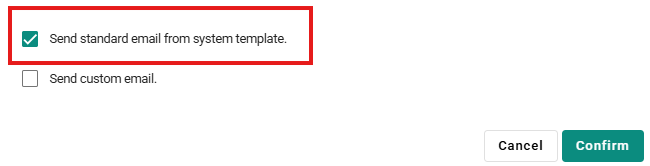
Select “Send standard email from system template” to send the default message configured in Email Settings.
-
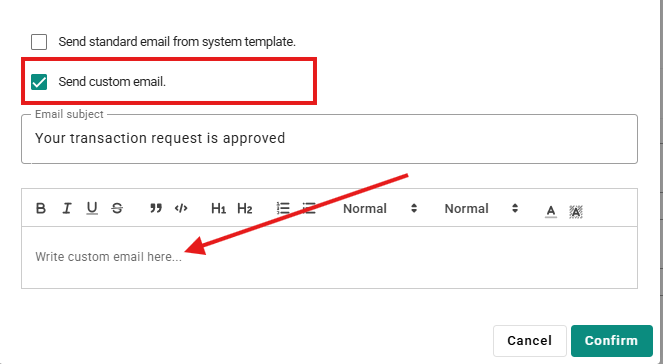
Select “Send custom email” to write and send a personalised message. A free-text field will appear for this purpose, and the entered message will be sent to the requester.
-
If no notification is needed, leave both options unchecked.
Financial Instruments
This section allows administrators to configure the company’s financial instruments. This must be set up before employees can begin reporting or requesting trades, as only the instruments added here will be available for selection.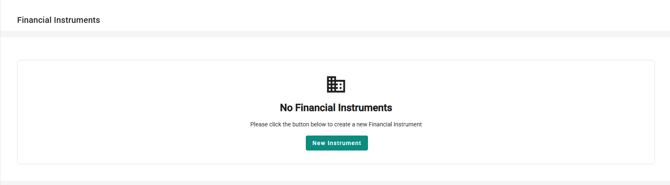
To add a new Financial Instrument:
-
Click on New Instrument.
- Enter the Name and ISIN number of the instrument.

- Enter Default trading venue, Instrument type and Default currency.

- Select the status of the financial instrument through the drop down menu.

- Active: The Financial Instrument is active, and will be selectable for the employees.
- Inactive: The Financial Instrument is no longer active, and will not be selectable for the employees.
- Draft: This is just a draft and the Financial Instrument will not yet be selectable for the employees.
- Add Notes if any additional information is needed. This will only be visible for administrators, not employees.

- Review all details are correct and click Save.
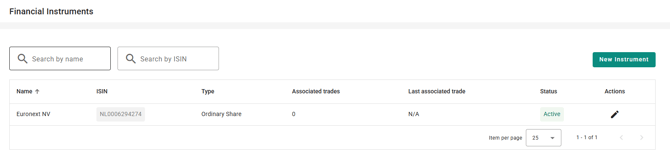
- After saving, the instrument will then appear in the overview of Financial Instruments.
Email templates
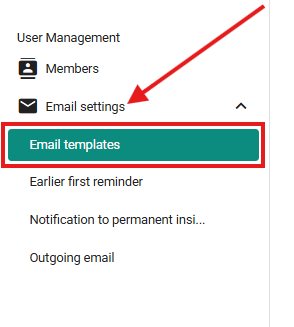
All standard email templates can be found under Email settings > Email templates
Email templates for Transaction Reports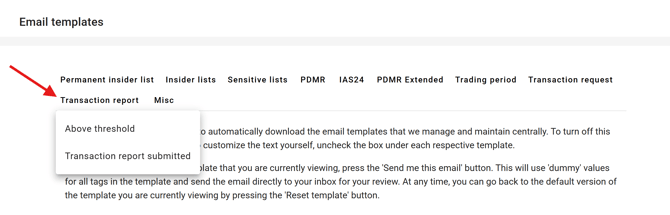
- Above threshold
If an employee has exceeded the threshold, and the administrator has chosen to send them an email notification and selected the option for “Send standard email from system template”. - Transaction report submitted
This email is sent to the employee when they have submitted a Trade Report.
Email Templates for Transaction Requests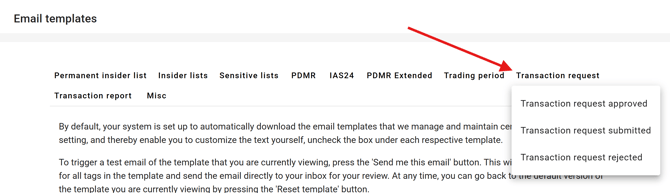
- Transaction request approved
This email is sent to the employee when their Transaction request has been approved by an administrator, and the administrator has chosen to "Send standard email from system template." - Transaction request submitted
This email is sent to the employee when they have submitted a Trade request. - Transaction request rejected
This email is sent to the employee when their Transaction request has been rejected by an administrator, and the administrator has chosen to "Send standard email from system template."
Click here for further instruction on how to manage and edit the standard Email Templates.